


Imagine you are typing. Suddenly, your keyboard stops working. This can be very frustrating. Do not worry! There are simple solutions you can try. This guide will help you fix your laptop keyboard.
Check for Simple Issues
First, look for simple problems. Is your keyboard dirty? Dust can block keys. Clean your keyboard with a soft brush. Be gentle. Do not use too much force.
Next, check if any key is stuck. Sometimes keys get stuck. Gently press each key. Make sure they all move smoothly.
Restart Your Laptop
Sometimes, a quick restart helps. Save your work first. Then, turn off your laptop. Wait for a minute. Turn it back on. See if your keyboard works now.
Update Your Keyboard Driver
Drivers help your laptop talk to the keyboard. Sometimes, drivers need updating. Follow these steps to update your driver:
- Go to the Start menu.
- Type “Device Manager” and open it.
- Find “Keyboards” and click to expand.
- Right-click on your keyboard name.
- Select “Update driver.”
- Choose “Search automatically for updated driver software.”
- Follow the instructions on the screen.
After updating, restart your laptop. Check if the keyboard works.
Check Keyboard Settings
Sometimes, settings change by mistake. Check your keyboard settings. Here is how:
- Go to the Start menu.
- Type “Control Panel” and open it.
- Click on “Ease of Access.”
- Select “Ease of Access Center.”
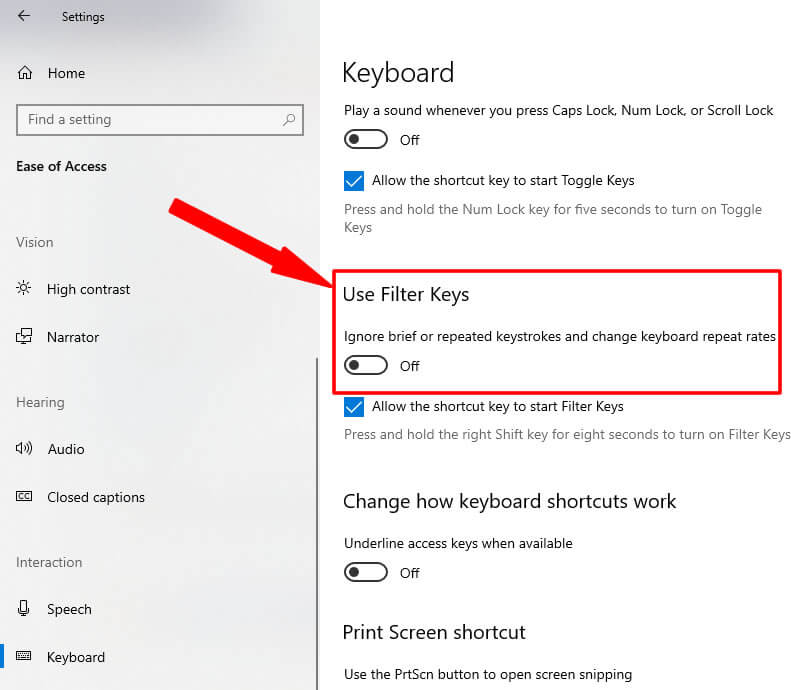
- Click on “Make the keyboard easier to use.”
- Make sure all boxes are unchecked.
- Click “Apply,” then “OK.”
Now, test your keyboard again.
Connect an External Keyboard
If the laptop keyboard still fails, try an external keyboard. Plug it into a USB port. Use it to type. This can help you work while fixing the laptop keyboard.
Try Safe Mode
Booting in Safe Mode can help. It loads only basic drivers. Follow these steps:
- Turn off your laptop.
- Turn it back on.
- Press F8 before Windows starts.
- Select “Safe Mode” using the arrow keys.
- Press Enter.
Check if the keyboard works in Safe Mode. If it does, a program may be causing issues.
Credit: www.myfixguide.com
Remove Recent Software
New software can cause problems. If your keyboard stopped after installing something, uninstall it. Here’s how:
- Go to the Start menu.
- Type “Control Panel” and open it.
- Click on “Programs and Features.”
- Find the recent software.
- Click “Uninstall.”
Restart your laptop. Check if the keyboard works.
Check for Malware
Malware can affect keyboards. Run a scan to check for malware. Use antivirus software. Follow these steps:
- Open your antivirus program.
- Select “Full Scan.”
- Let it scan your laptop.
- Follow instructions to remove any threats.
After cleaning, restart your laptop. Test your keyboard.
Check Laptop’s BIOS
Sometimes, BIOS settings cause issues. Check your BIOS settings. Here’s how:
- Restart your laptop.
- Press F2 (or the key for BIOS setup) as it starts.
- Look for keyboard settings.
- Ensure they are correct.
- Exit and save changes.
Now, check your keyboard again.
Credit: m.youtube.com
Contact Support
If nothing works, contact support. Your laptop brand will have support. They can help you find a solution. They might ask you to bring your laptop in.
Frequently Asked Questions
Why Is My Laptop Keyboard Not Working?
Dust or debris might be blocking keys. Check connections and update drivers.
How Can I Fix A Non-responsive Keyboard?
Restart your laptop. Update keyboard drivers. Check connections. Try an external keyboard.
Is There A Way To Reset My Keyboard Settings?
Yes. Go to Control Panel. Select Keyboard. Click on Reset to Default.
Can I Use An On-screen Keyboard Temporarily?
Yes. Search for “On-Screen Keyboard” in the Start menu. Use it for typing.
Conclusion
There are many steps to fix a keyboard. Start with simple checks. Restart your laptop. Update drivers. Check settings. Use an external keyboard if needed. Safe Mode can help too. Remove new software if needed. Scan for malware. Check BIOS settings. Contact support if all else fails.
Now you know what to do. Next time your keyboard stops working, do not panic. Use these steps to solve the problem.