

Typing is a big part of using a computer. Sometimes, keyboards don’t work right. They might type wrong letters. This can be very frustrating.
But don’t worry! You can fix it. Let’s learn how.
Check Your Keyboard Settings
First, look at your settings. Sometimes, settings change by mistake. Here is what you need to do:
- Go to the Control Panel on your computer.
- Find the “Keyboard” option.
- Check the settings. Are they right?
If settings are wrong, fix them. This might solve the problem.
Inspect Your Keyboard
Look at your keyboard. Is it clean? Dirt can cause problems. Here is how to clean it:
- Turn off your computer.
- Unplug the keyboard.
- Use a cloth to wipe the keys.
- Use a can of air to blow away dirt.
Cleaning can help. Dirty keyboards often type wrong letters.
Update Keyboard Drivers
Drivers help the keyboard talk to the computer. Outdated drivers can cause problems. To update them:
- Go to “Device Manager” on your computer.
- Find “Keyboards.”
- Right-click on your keyboard name.
- Select “Update driver.”
Updating drivers can fix typing errors. Always keep drivers updated.
Check Language Settings
Language settings can change how keys work. They might be set wrong. To check them:
- Go to “Settings” on your computer.
- Find “Time & Language.”
- Check the language settings.
- Make sure the correct language is selected.
Wrong language settings can confuse the keyboard. Fixing them can help.
Test with Another Keyboard
Sometimes, the keyboard is broken. Try another keyboard to see. If the new one works, your keyboard might need fixing. Or it might need replacing.
Restart Your Computer
Restarting can solve many problems. It refreshes the system. Often, it fixes typing errors. Simply turn off your computer. Then, turn it back on.
Scan for Viruses
Viruses can mess with the keyboard. They might change how it works. To scan for viruses:
- Open your antivirus program.
- Run a full system scan.
If viruses are found, remove them. This might fix your keyboard problem.
Check for Hardware Issues
Sometimes, hardware problems cause typing errors. If the keyboard is damaged, it won’t work right. Look for broken keys or loose connections.
If you find damage, you might need a new keyboard. Buying a new one is often cheaper than fixing an old one.
Use On-Screen Keyboard
If your keyboard doesn’t work, use the on-screen keyboard. It lets you type with your mouse. Here is how to open it:
- Go to “Settings.”
- Find “Ease of Access.”
- Select “Keyboard.”
- Turn on “On-Screen Keyboard.”
This is a temporary fix. It can help while you solve the problem.
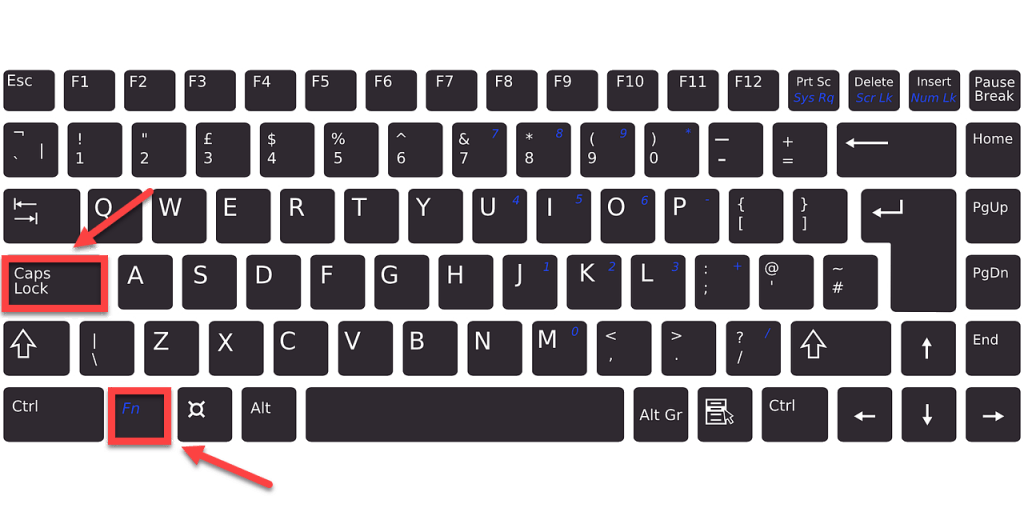
Credit: www.drivereasy.com
Adjust Keyboard Layout
Different layouts can confuse you. Check if the layout is right. Here is how:
- Go to “Settings.”
- Find “Time & Language.”
- Select “Region & Language.”
- Click on your language.
- Select “Options.”
- Check the keyboard layout.
Make sure it matches your keyboard. Fixing the layout can solve typing issues.
Disable Sticky Keys
Sticky Keys can change typing behavior. They are useful for some users. But they might cause problems for others. To disable them:
- Go to “Settings.”
- Find “Ease of Access.”
- Select “Keyboard.”
- Turn off “Sticky Keys.”
Disabling Sticky Keys can improve typing. It can solve errors.
Consider Professional Help
If nothing works, ask for help. A computer expert can look at your keyboard. They know how to fix problems. They might find something you missed.
Frequently Asked Questions
Why Is My Keyboard Typing Wrong Letters?
Your keyboard settings might be incorrect. Check for language or layout changes in your system settings.
How Do I Fix Keyboard Misalignment Issues?
Reboot your computer. Sometimes, a simple restart can fix misalignment problems.
Can Software Updates Cause Keyboard Errors?
Yes, they can. Updates might change settings. Always review settings post-update to ensure everything is correct.
What If My Keyboard Types Random Letters?
Check for malware. Viruses can cause erratic behavior. Run a thorough antivirus scan.
Conclusion
Keyboards can sometimes type wrong letters. But don’t worry. There are many ways to fix it. Check settings, clean your keyboard, and update drivers. Try another keyboard or restart your computer.
Scan for viruses and check hardware. Use on-screen keyboard if needed. Adjust layout and disable Sticky Keys. If problems remain, ask for help.
Follow these steps. You will type right again soon!