


Mechanical keyboards are renowned for their durability, responsiveness, and customizable features, making them popular among gamers and typists alike. Unlike their membrane counterparts, mechanical keyboards utilize individual switches for each key, providing distinct tactile feedback and audible sound upon activation. This unique design not only enhances user experience but also dramatically improves typing accuracy and speed.
The core component of a mechanical keyboard is the switch itself. Each switch comprises several parts: a housing, a spring, and a stem. When a key is pressed, the stem moves downward compressing the spring until it reaches a point of actuation, allowing the keyboard to register a key press. The variety of switch types—such as linear, tactile, and clicky—affects how a keyboard feels and sounds during use, contributing to the overall typing experience.
In contrast, membrane keyboards utilize a rubber dome layer that requires the entire key to be pressed down for the circuit to complete, resulting in a softer feel and less pronounced feedback. Membrane keyboards are generally quieter but often lack the precise responsiveness and customization options of mechanical keyboards.
One of the significant advantages of mechanical keyboards lies in their ability to customize switches. Enthusiasts can easily replace the existing switches with different types, allowing users to tailor their keyboard to meet personal preferences for feel and sound. This customization option can lead to a more satisfying and personalized typing experience, helping users create a setup that suits their specific needs.
Ultimately, understanding the components and functionality of mechanical keyboards is crucial for anyone considering a switch from traditional options. The benefits of customization, in particular, can significantly enhance the user’s interaction with their device.
Types of Mechanical Switches
When it comes to mechanical keyboards, the selection of switches plays a crucial role in determining the overall user experience. Among the most popular types of switches are Cherry MX, Razer, and Kailh, each offering unique characteristics tailored for different preferences.
Cherry MX switches are perhaps the most recognized mechanical switches in the market. They are available in several variations, including Cherry MX Red, Blue, Brown, and others. Red switches are linear, meaning they provide a smooth keystroke without tactile feedback, which some gamers prefer for rapid key presses. In contrast, Blue switches are known for their distinct click sound and tactile feel, making them ideal for typists who enjoy auditory feedback. Brown switches offer a balanced approach with a soft bump but without the audible click, catering to users who seek a quieter option without sacrificing tactile response.
Next, Razer switches are specifically designed for their gaming keyboards. Razer Green switches are analogous to Cherry MX Blue with a tactile bump and click sound, while Razer Yellow switches are linear, offering silent operation. The choice between Razer switches often depends on whether the user prioritizes sound and tactility for typing or seeks a quieter key press for gaming.
Kailh switches are another alternative that has gained popularity in recent years. They provide a range of options mirroring other brands, including Kailh Box switches known for their dust and moisture resistance. Whether you prefer a tactile, linear, or clicky experience, Kailh has options to match those needs.
Ultimately, the choice of switch depends on personal typing habits and preferences. Factors such as tactile feedback, noise level, and keystroke smoothness should guide your decision, ensuring that your mechanical keyboard effectively meets your needs.
Tools and Materials Needed
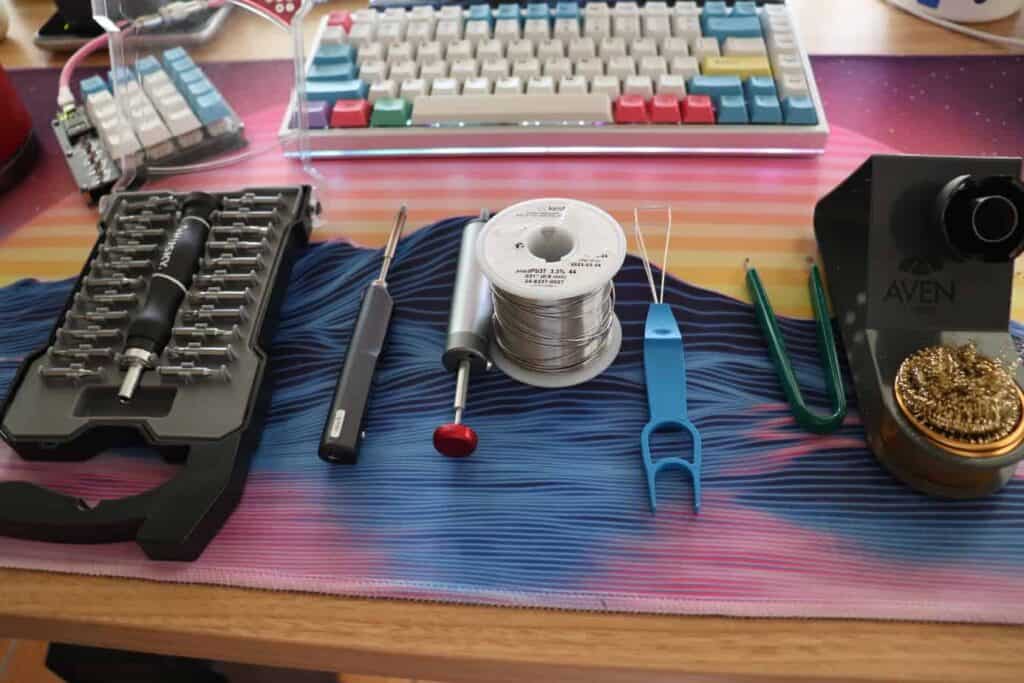
Replacing mechanical keyboard switches requires specific tools and materials to ensure a smooth and efficient process. Below is a detailed list of essential items that will be useful during the switch replacement procedure.
Firstly, a keycap puller is crucial for safely removing the keycaps from the keyboard without damaging them. This tool typically comes in two variants: a wire style that can easily slide under the keycaps and a plastic version designed for more delicate removal. A keycap puller not only facilitates the removal of keys but also ensures that they are not scratched or scuffed in the process.
Next, you may require a switch puller if you are dealing with hot-swappable switches. This tool is used to remove the switches from the keyboard socket without the need for soldering. If your keyboard does not support hot-swapping, you will need soldering equipment to remove and install the switches. This includes a soldering iron, solder, desoldering pump or braid, and possibly tweezers to manage the components.
Additionally, it is advisable to have a set of replacement mechanical switches on hand. Different types of switches, such as linear, tactile, or clicky versions, can augment the overall typing experience based upon personal preference. Understanding the characteristics of each switch type will help in making a suitable choice for replacement.
Finally, a work mat can help in organizing your tools and components while providing a stable working surface. This prevents any small parts from going missing during the replacement process and ensures an efficient workflow.
Preparing Your Keyboard for Switch Replacement
Before embarking on the process of replacing mechanical keyboard switches, it is crucial to adequately prepare your keyboard to ensure a seamless and efficient operation. The first step involves disconnecting your keyboard from the computer. This step enhances safety by preventing any accidental inputs and also protects the internal circuitry from potential damage during the disassembly process.
Once the keyboard is unplugged, the next task is to remove the keycaps. Utilizing a keycap puller can facilitate this process while minimizing the risk of damaging both the keycaps and the switches beneath them. Each keycap should be removed gently, ensuring that they are not forced off, which could lead to unwanted damage. Make sure to keep the keycaps organized, possibly by placing them in a dedicated container, as this will streamline the reassembly process later.
After the keycaps have been removed, it is essential to assess your keyboard’s characteristics to determine the next steps for switch replacement. Specifically, you will need to check if your keyboard is hot-swappable or requires soldering. Hot-swappable keyboards allow users to replace switches without the need for soldering, making the process considerably easier. If your keyboard does not support hot-swapping, you will need a soldering iron and relevant skills to detach the existing switches and solder the new ones in place.
Carefully reviewing your keyboard’s design will also assist in obtaining the necessary tools if soldering is required. Ensure you have a proper workspace that includes adequate lighting and a static-free environment to avoid any harm to electronic components during the replacement process. Proper preparation will lay a strong foundation for the successful replacement of mechanical keyboard switches.
Removing Old Switches

Removing old switches from a mechanical keyboard is a crucial step in the modification process, whether you’re upgrading or replacing malfunctioning components. The method used for removal largely depends on whether the keyboard is hot-swappable or soldered.
For hot-swappable keyboards, the process is relatively straightforward. These keyboards are designed to allow switches to be replaced without soldering, making it easier for users to customize their experience. First, ensure the keyboard is unplugged to avoid any electrical issues. Use a keycap puller to carefully remove the keycaps from the switches you wish to replace. Once the keycaps are removed, use a switch puller to grasp the switch securely. Pull straight up with consistent force until the switch releases from the socket. A gentle rocking motion can help in cases where the switch is slightly stuck. Take care to avoid applying excessive force, as this can damage the PCB or surrounding components.
On the other hand, if your keyboard is soldered, the process requires more caution and the right tools. Begin by desoldering the switches. To do this, you will need a soldering iron, desoldering pump or braid, and possibly some tweezers. Heat the solder joints on the switch terminals until the solder melts. Quickly use the desoldering pump to remove the molten solder. Alternatively, you can use desoldering braid, placing it over the solder joint and then applying the iron on top. Once the solder is removed, carefully lift the switch out of the PCB with the tweezers. Take care during this process to prevent overheating the board or damaging the traces.
Whether working with hot-swappable or soldered switches, it’s essential to maintain a careful approach to avoid damage. Following these guidelines will facilitate a smoother transition to new mechanical switches in your keyboard.
Installing New Switches
Once you have removed the old mechanical keyboard switches, the next crucial step is to install the new switches. Begin by carefully ensuring the proper alignment of each switch with its corresponding PCB (printed circuit board) hole. The alignment is vital, as misaligned switches can lead to poor connections or damage during subsequent steps. Make sure the pins of each switch are facing downwards, matching the orientation of the previous switches.
After aligning the switches, gently press them into place, ensuring they are securely seated within the sockets. It is important to apply even pressure to prevent bending the pins or damaging the switch itself. If you are using hot-swappable switches, you can typically press them down until you hear a click, which indicates a secure fit. If the switches are not hot-swappable, you will need to solder them into place.
For those planning to use a soldering technique, it is essential to have the right tools and materials, including a soldering iron, solder, and flux. Begin by applying a small amount of solder to the joint where the switch pin meets the PCB pad. Heat the joint with the soldering iron, feeding the solder into the joint until you see a smooth, shiny connection. Once complete, repeat this for each pin of the switch. Remember to work in a well-ventilated area and ensure safety precautions are followed during soldering.
After all the switches are installed, conduct a visual check to confirm that they are correctly oriented and seated. Once verified, you can connect the keyboard to your computer to test the functionality of each new switch. Effective installation of new mechanical keyboard switches enhances typing experience, improving the overall performance and feel of your keyboard.
Reassembling Your Mechanical Keyboard
After successfully replacing the switches in your mechanical keyboard, the next crucial step is to reassemble the keyboard to ensure proper functionality. This process involves carefully reattaching the keycaps and making sure that all components are securely in place.
Firstly, start by inspecting the replacement switches to confirm that they are seated properly in the keyboard plate. Each switch should fit snugly and securely, ensuring no movement is possible. If there are any misaligned switches, gently adjust them so that they will not hinder the reassembly process.
Next, begin reattaching the keycaps. It is advisable to start from the center of the keyboard and work your way outwards. This approach helps in distributing the pressure evenly across the switches and prevents any inadvertent damage. Align each keycap carefully with the corresponding switch and press down firmly until you hear a satisfying click indicating that the keycap is securely fitted. Ensure that the keycaps are positioned beneath their respective stems and that they sit level with one another. This step is essential not only for aesthetic purposes but also for maintaining comfortable typing ergonomics.
Once all keycaps are in place, it is prudent to perform a quick test. Plug the keyboard back into your computer and check each key for functionality. This test confirms that your switches were correctly installed and that the keyboard performs as expected. If any keys are unresponsive, carefully remove the keycap and re-examine the switch placement.
To finish, secure any additional components such as the back cover or plate, ensuring that all screws are tightened appropriately. This additional layer protects the internal components and completes the reassembly process. By following these steps diligently, your mechanical keyboard will be fully reassembled and ready for use once again.
Testing and Troubleshooting
Once the new mechanical keyboard switches have been installed, it is essential to conduct thorough testing to ensure that they are functioning correctly. The first step in this process involves connecting the keyboard to your computer and verifying that each key registers when pressed. You can utilize various free keyboard tester applications available online, which allow for real-time feedback on key presses. This helps to determine whether any switches are unresponsive or inconsistent in their activation.
In addition to basic testing, it is crucial to pay attention to the feel and sound of the switches. Each switch type offers a unique tactile feedback and audible click, which should be consistent across all keys. If certain keys feel mushy or do not have the expected resistance, this may indicate improper installation or a defective switch. In such a case, carefully removing the faulty switch for inspection and potential reinstallation could resolve the issue.
Another common problem users may encounter is intermittent keystroke registration, where a key may function sporadically. This issue often arises from poor soldering connections or debris trapped under the switch. Cleaning the area around and beneath the switch may provide a temporary solution, while reacquainting yourself with proper soldering techniques is necessary for a permanent fix. Ensuring that the switches are seated correctly in their housings is vital as well, as misalignment can hinder their performance.
If you experience persistent issues, it may be advisable to consult resources from the keyboard community, as there are many forums and guides available. These platforms are invaluable for troubleshooting various problems and obtaining advice tailored to specific keyboard models and switch types. Adopting a systematic approach to testing and troubleshooting will lead to a more satisfying mechanical keyboard experience.
Maintenance Tips for Mechanical Keyboards

Caring for a mechanical keyboard is essential to maintaining its performance and extending its lifespan. These keyboards, prized for their tactile feedback and durability, can benefit from regular maintenance practices. One key aspect of maintenance is cleaning. Dust, crumbs, and other debris can accumulate between keycaps, potentially leading to sticky keys or malfunctioning switches. To clean your keyboard, it’s advisable to first unplug it and gently remove the keycaps using a keycap puller.
Once the keycaps are removed, you can clean the surface underneath with a soft brush or compressed air to dislodge any trapped particles. For a more thorough clean, a damp microfiber cloth can be used to wipe the surface while ensuring that no moisture seeps into the switches. Keycaps can be cleaned separately by soaking them in warm, soapy water for a short time and then rinsing and drying them thoroughly before reinstallation.
Additionally, periodic checks of the keyboard’s switches are recommended. This can include testing each key to ensure it registers properly and does not feel sticky or unresponsive. If any irregularities are noticed, you might consider replacing the switches that exhibit issues. Furthermore, apply lubricant sparingly to the switch mechanism to enhance key feel and reduce noise; however, this should be done with caution to avoid over-lubricating, which can cause buildup.
Finally, always handle your keyboard with care. Avoid eating or drinking near it, as spills can severely damage mechanical switches. Consider investing in a keyboard cover for added protection against dust and spills. By following these maintenance tips, you can significantly improve your mechanical keyboard’s longevity and performance, ensuring you continue to enjoy a great typing experience.